
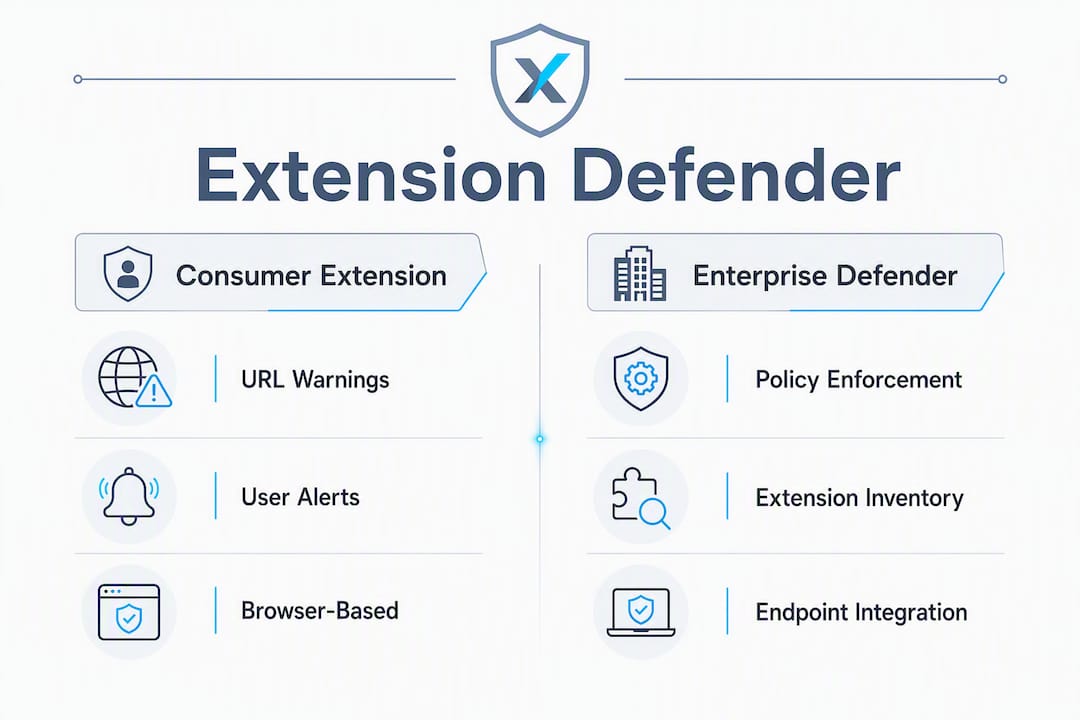
"Extension defender" most often refers to two distinct Microsoft products: the Microsoft Defender Browser Protection extension that individual users install in Chrome or Firefox, and the enterprise-grade controls inside Microsoft Defender for Endpoint and Microsoft Defender Vulnerability Management that let admins inventory, score, and block extensions across an entire device fleet. The quickest next step for any IT team is to open the Defender XDR portal and confirm whether the browser extension inventory is actively collecting data for your organisation.
The scope difference matters. The consumer extension adds phishing and malicious-URL warnings to a single browser session. Enterprise controls give you version tracking, permissions risk scoring, and the ability to enforce allowed lists across every managed device in your environment. If you are reading this to protect one laptop, install the extension and move on. If you are responsible for a fleet, the inventory is where to start.
Table of Contents
- What are Microsoft Defender's browser protection features?
- How do you install and enable Defender browser protection?
- How do you deploy and manage extensions at scale with Defender?
- How does Defender assess and score browser extensions?
- What are the real security risks from browser extensions?
- Common problems, Canadian considerations, and when to disable
- Key takeaways
- Why systematic extension management is the control most organisations skip
- AccountNext-Nexus helps Canadian organisations deploy Defender the right way
- Useful sources to read next
What are Microsoft Defender's browser protection features?
Microsoft ships two layers of browser extension security, and they serve different jobs.

Microsoft Defender Browser Protection is a lightweight extension available for Chromium-based browsers and Firefox. Its core function is real-time URL reputation checking powered by Microsoft SmartScreen, the same engine built into Microsoft Edge. When a user navigates to a known phishing site or a URL flagged for malware distribution, the extension intercepts the request and displays a warning. Edge users already have SmartScreen natively, so the extension is primarily useful for Chrome and Firefox deployments where SmartScreen is not built in.
On the privacy side, Microsoft states that the extension sends URLs to Microsoft's cloud service for reputation lookup. That telemetry is scoped to URL data and is governed by the Microsoft Privacy Statement. Enterprise telemetry from Defender for Endpoint is a different stream entirely: it includes device-level signals, extension inventory data, and permissions metadata, all processed under your organisation's tenant and subject to your data residency configuration.
Microsoft Defender for Endpoint and its Defender Vulnerability Management add-on operate at a completely different level. Rather than protecting one browser session, they give security teams a centralised view of every extension installed across managed devices, including the extension name, browser type, device count, enabled or disabled status, requested permissions, and a calculated permissions risk score. Defender Vulnerability Management surfaces this data in the Browser Extensions inventory inside the Defender XDR portal.
Common confusion: the consumer extension does not enforce policy. It warns users. Enterprise controls enforce policy. Choosing between them is not an either/or decision for most organisations — you want both, with the enterprise controls doing the heavy lifting.
Independent reviews note that Microsoft Defender provides a solid baseline, but organisations should layer additional controls to reach higher protection targets. The Electronic Frontier Foundation similarly recommends favouring open-source, audited extensions over broad "all-in-one" tools that tend to over-request permissions.
How do you install and enable Defender browser protection?
For individual users and IT staff validating single devices
- Open the Chrome Web Store or your browser's extension marketplace and search for Microsoft Defender Browser Protection.
- Click Add to Chrome (or the equivalent for your browser). The extension requests permission to read and change data on websites you visit — this is how it intercepts URLs for reputation checks.
- Once installed, the Defender shield icon appears in the browser toolbar. A green shield indicates the extension is active.
- To confirm it is working, visit browserprotection.microsoft.com — Microsoft's official test and information page for the extension.
- Review the permissions listed in your browser's extension manager. The extension typically requests
host_permissionsfor all URLs (<all_urls>) to perform real-time checks. Verify this matches what the Chrome Web Store listing describes before trusting it.
Edge users: SmartScreen is enabled by default under Settings > Privacy, search, and services > Microsoft Defender SmartScreen. No separate extension is needed. Confirm the toggle is on and that "Block potentially unwanted apps" is also enabled.
Regional note for Canada: The Microsoft Defender Browser Protection extension is available in the Chrome Web Store and the Firefox Add-ons marketplace for Canadian users without restriction. If the extension does not appear in a search, navigate directly to the Chrome Web Store listing via browserprotection.microsoft.com. Corporate proxy configurations or browser management policies can suppress extension visibility — check with your IT admin if the install option is greyed out.
Pro Tip: Before installing any extension, open the Chrome Web Store listing and scroll to the "Permissions" section. If an extension requests <all_urls> or broad host permissions beyond what its stated function requires, treat that as a red flag. For the Defender extension specifically, broad URL access is expected and documented — but apply the same scrutiny to every other extension on your devices.
How do you deploy and manage extensions at scale with Defender?
Prerequisites and enablement
To use the browser extensions inventory, your organisation needs Microsoft Defender for Endpoint Plan 2 or the Defender Vulnerability Management standalone add-on. Administrators require the Security Administrator or Vulnerability Management roles in the Defender XDR portal. Once prerequisites are met, navigate to Vulnerability Management > Software inventory > Browser extensions to confirm data is flowing.
Using the browser extensions inventory
The inventory surfaces six key data points for every extension across your fleet:
- Extension name and browser (Chrome, Edge, Firefox)
- Number of devices with the extension installed
- Users associated with each installation
- Enabled or disabled status per device
- Installed version (useful for spotting outdated or version-skewed installs)
- Requested permissions and a calculated permissions risk score
This data lets you identify which extensions are running on the most devices, which carry the highest permissions risk, and which are running outdated versions that may contain known vulnerabilities.
Blocking and allowing extensions at scale
| Permission category | Typical risk level | Recommended admin action |
|---|---|---|
activeTab only | Low | Monitor; acceptable for most tools |
storage + tabs | Low–Medium | Review use case; audit periodically |
host_permissions (specific domains) | Medium | Approve only for known business tools |
host_permissions (<all_urls>) | High | Block or require explicit justification |
webRequest + <all_urls> | Critical | Block immediately; investigate installs |
nativeMessaging | High | Restrict to vetted enterprise tools only |
Enforcement options include Microsoft Intune (push extension allow/block lists via configuration profiles), Group Policy (ExtensionInstallBlocklist and ExtensionInstallAllowlist for Chromium browsers), and Defender's own policy controls inside the XDR portal. Prefer an allowlist approach over a blocklist — only approved extensions run, everything else is blocked by default.
Pro Tip: Use the DeviceTvmBrowserExtensions table in Advanced Hunting to automate your audit cycle. A simple query filtering on PermissionsRiskLevel == "High" will surface every high-risk extension across your fleet in seconds. Schedule this query to run weekly and route alerts to your security operations queue.
For a broader view of how vulnerability management integrates with your security programme, the enterprise vulnerability management process guide covers the operational workflow in detail.
How does Defender assess and score browser extensions?
Defender collects the following signals for every extension it discovers:
- Requested permissions: the full list from the extension manifest
- Permissions risk level: a calculated score (Low, Medium, High, Critical) based on permission breadth
- Version information: current installed version versus known vulnerable versions
- Install count: how many devices and users have the extension
- Enabled/disabled status: whether the extension is actively running
- Store link: direct reference to the Chrome Web Store or equivalent listing for vendor verification
| Signal | What it indicates | Priority action |
|---|---|---|
<all_urls> host permission | Extension can read all web traffic | Immediate review; block if unvetted |
| Outdated version | May contain patched CVEs | Force update or block until updated |
| High device count + high risk | Broad blast radius if compromised | Prioritise for remediation |
| Disabled status | Extension present but inactive | Remove rather than leave dormant |
| Unknown publisher | No verified store identity | Block pending vendor verification |
Permissions overreach drives the highest risk scores. An extension requesting webRequest plus <all_urls> can intercept and modify every HTTP request a user makes — that is functionally equivalent to a man-in-the-middle position on the browser. Outdated versions compound the risk because browser extension CVEs frequently trace back to broad host permissions combined with insecure cross-origin messaging.
For triage: block anything with Critical-rated permissions that lacks a clear business justification. Monitor High-rated extensions with a 30-day review window. Schedule Medium-rated extensions for quarterly manifest audits. Low-rated extensions with a known publisher can run with periodic automated checks via Advanced Hunting.
What are the real security risks from browser extensions?
Extensions are high-value targets. Many request broad host_permissions or store sensitive authentication tokens, and attackers exploit the message-passing channel between low-privilege content scripts and high-privilege background service workers. OWASP's Browser Extension Vulnerabilities Cheat Sheet identifies three core vulnerability classes: permission over-scoping, insecure cross-context messaging, and state leakage through DevTools bridges.
The GitHub Security Lab's research on attacking browser extensions adds XSS, SSRF, and API injection to that list. Moving to Manifest V3 reduced some attack surface, but broad host permission grants remain a problem regardless of manifest version.
Operational checklist for IT teams
- Enforce a least-privilege permission policy: no extension gets
<all_urls>without documented business justification and security sign-off - Maintain an approved extension list and block everything not on it via Intune or Group Policy
- Run Advanced Hunting queries against
DeviceTvmBrowserExtensionson a weekly schedule - Audit extension manifests quarterly; flag any permission additions that appear in an update without a corresponding change request
- Review publisher account security for any extension your organisation depends on — a compromised developer account can push a malicious update to every user silently
- Track third-party cybersecurity risks from extension vendors the same way you track any software supply chain dependency
User guidance
Prefer open-source or independently audited extensions for sensitive workflows. Restrict self-install rights so users cannot add extensions without IT approval. When users do install extensions, train them to read the permissions prompt — an extension requesting access to all websites for a task that only needs one site is a signal worth questioning.
Pro Tip: To detect inbound message-passing anomalies at scale, write an Advanced Hunting rule that flags content scripts sending messages to background workers outside expected domains. Pair this with an automated remediation play: isolate the device, remove the extension via Intune, and notify the user with a plain-language explanation. This closes the loop without requiring manual intervention for every alert.
For practical website security best practices that complement your extension policy, the TCOSI resource covers the SMB angle well.
Common problems, Canadian considerations, and when to disable
Symptom-based troubleshooting
- Extension not visible in store: — Navigate directly to the Chrome Web Store listing via browserprotection.microsoft.com. Corporate proxy or firewall rules sometimes block store searches without blocking direct URLs.
Regional availability in Canada
The extension is available in Canada without geographic restriction. Canadian organisations deploying Defender for Endpoint should confirm their tenant's data residency is set to Canada or a compliant region under the Microsoft 365 admin centre. Defender telemetry processed in Canadian data centres aligns with PIPEDA obligations and, for healthcare organisations, provincial privacy legislation such as Ontario's PHIPA or British Columbia's PIPA.
When disabling is reasonable
During active web development or penetration testing, the extension's URL interception can interfere with test environments that intentionally serve malicious-looking payloads. Disable it for the duration of the test session and re-enable immediately after. Similarly, if an enterprise proxy performs full SSL inspection and the extension's telemetry conflicts with the proxy's certificate chain, a temporary disable while you configure the exception is preferable to leaving the conflict unresolved indefinitely.
Key takeaways
Microsoft Defender's browser protection works at two levels: a consumer extension for per-browser URL warnings, and enterprise controls inside Defender Vulnerability Management for fleet-wide inventory, risk scoring, and policy enforcement.
| Point | Details |
|---|---|
| Two distinct products | Microsoft Defender Browser Protection (extension) handles URL warnings; Defender Vulnerability Management handles enterprise inventory and blocking. |
| Enable inventory first | Confirm the Browser Extensions inventory is active in the Defender XDR portal before any other enterprise action. |
| Allowlist over blocklist | Enforce an approved extension list via Intune or Group Policy; block everything not explicitly permitted. |
| Least privilege is the control | Flag any extension requesting <all_urls> or webRequest for immediate review; these permissions carry the highest blast radius. |
| AccountNext-Nexus for managed deployment | AccountNext-Nexus provides 24/7 monitoring, Defender deployment, and vulnerability management for Canadian organisations that need this done at scale. |
Why systematic extension management is the control most organisations skip
Most security teams I work with have a firewall policy, an EDR deployment, and a patch management schedule. Almost none of them have a formal browser extension policy when they first engage with us. That gap is not a minor oversight. Extensions sit inside the browser, which sits inside the user session, which has access to credentials, session tokens, and every piece of data the user touches. An extension with <all_urls> and webRequest permissions is, functionally, a keylogger with a Chrome Web Store listing.
The pattern we see repeatedly: an organisation deploys Defender for Endpoint, does the initial configuration, and then never enables the browser extension inventory because it is not part of the default onboarding checklist. Months later, a routine audit surfaces 40 or 50 extensions across the fleet, several with high-risk permissions, a few from publishers with no verifiable identity. None of them were intentionally approved. They accumulated through user self-installs, shadow IT, and the occasional browser migration that carried extensions over silently.

The fix is not complicated. Enable the inventory, run the Advanced Hunting query, build an allowlist, and enforce it. What makes it hard is the organisational discipline to maintain it — quarterly audits, a change process for new extension requests, and a clear policy on what happens when an unapproved extension is found. That is where managed services earn their keep: not in the initial setup, but in the sustained operational cadence that keeps the list current and the alerts actionable.
AccountNext-Nexus helps Canadian organisations deploy Defender the right way
Deploying Defender for Endpoint and getting the browser extension inventory actually working are two different things. Many Canadian organisations have the licences and have never turned on the inventory, never built an allowlist, and have no Advanced Hunting queries running. AccountNext-Nexus closes that gap with 24/7 monitoring, full Defender deployment and configuration, vulnerability management, and policy enforcement across your device fleet — all under a single managed services agreement with transparent, fixed-fee pricing.

For organisations subject to PIPEDA, PHIPA, or sector-specific compliance requirements, AccountNext-Nexus's compliance assessments confirm your Defender configuration meets Canadian data residency and privacy obligations. The starting point is a security audit that maps your current extension exposure and identifies the highest-priority gaps.
Book a security audit or discovery call with the AccountNext-Nexus team to get a clear picture of your extension risk and a concrete remediation plan.
Useful sources to read next
The resources below are the primary references behind this article. Admin-focused resources are marked accordingly.
- Browser extensions assessment in Microsoft Defender Vulnerability Management — The official Microsoft documentation for enabling the inventory, running Advanced Hunting queries, and configuring blocking policies. Start here for any enterprise deployment. (Admin-focused)
- Microsoft Defender Browser Protection — official product page — Microsoft's information and test page for the consumer extension. Use this to verify the extension is active after install.
- Microsoft Privacy Statement — Governs what data the Defender Browser Protection extension collects and how Microsoft handles it.
- Browser Extension Vulnerabilities — OWASP Cheat Sheet Series — The authoritative reference for extension vulnerability classes including permission over-scoping, insecure message passing, and state leakage. Essential reading for security engineers. (Admin and developer-facing)
- Stay secure — Chrome for Developers — Chrome's official guidance on minimising permissions, enforcing content security policies, and validating message senders. (Developer-facing)
- Attacking browser extensions — GitHub Blog — Security Lab research covering XSS, SSRF, and API injection in extensions, with analysis of how Manifest V3 changes the attack surface. (Admin and developer-facing)
- Windows Defender Chrome Extension Detection — SANS ISC — Independent analysis of the Defender Browser Protection extension's behaviour, useful for validating what the extension actually does on the wire.
- Electronic Frontier Foundation — Guidance on selecting trustworthy extensions and the case for open-source, audited tools over broad all-in-one extensions.
- Microsoft Intune settings catalogue — Reference for configuring browser extension allow and block lists via Intune configuration profiles. (Admin-focused)